Applies to: Version 5.0
When networked, PastPerfect 5.0 is designed so that each user runs the PastPerfect application locally from his or her own directory structure and points towards network shares for data. Using this same model, PastPerfect can be set up in virtual environments such as Terminal Services, Citrix, VMware, etc. The installation instructions below serve as a guide through the process of creating “User Directories” for each individual that runs PastPerfect, as well as a “Main” directory which will have the data, images and multimedia files. Please note that folder names, share names, and install paths must not contain spaces.
NOTE: This installation guide is intended for those who have a Basic version of the PastPerfect 5.0 program. If your installation CD is the Upgrade version of PastPerfect 5.0, please contact the Support Office.
Installation Instructions:
- Close all open programs, insert the PastPerfect Software 5.0 Basic CD and follow the onscreen instructions.
- When asked to choose an Installation Folder please use the default name, pp5, which we will refer to as the “Main” pp5 folder.
- When prompted to Select Packages make sure Single Computer or Server is checked. Do not open PastPerfect after the installation completes.
- Create a copy of the “Main” pp5 folder and rename it “pp5 Uninflated (DO NOT USE)”. This “Uninflated” directory will be used to create additional instances of PastPerfect and will not function properly if its executables are run.
- Create copies of the “Uninflated” pp5 folder, making a separate “User Directory” for each client, e.g., pp5_Adam, pp5_Betsy, etc. Folder names, share names, and install paths must not contain spaces.
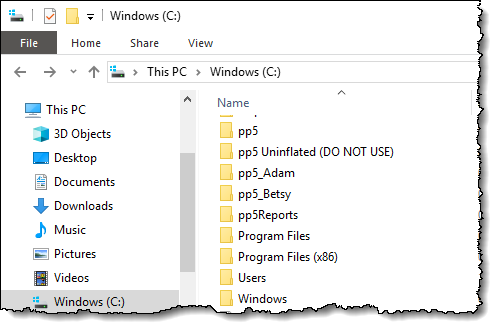
- Open each “User Directory,” one at a time, and execute pp5.exe. When asked to enter your name and address, simply click Start PastPerfect which will take you to the Main Menu. From the Main Menu click Setup followed by Network. Replace what is in the Data, Image and Multimedia folders with the paths to the “Main” pp5 Data, Image and Multimedia folders and exit PastPerfect completely.
PERMISSIONS NOTE: Each user account will need full control over their pp5 folder/subfolders and the “Main” pp5 folder/subfolders.
Each user will open PastPerfect by executing pp5.exe from their “User Directory.”